C# installation guide
Automatic Install
Note: you must have python installed to run the installer
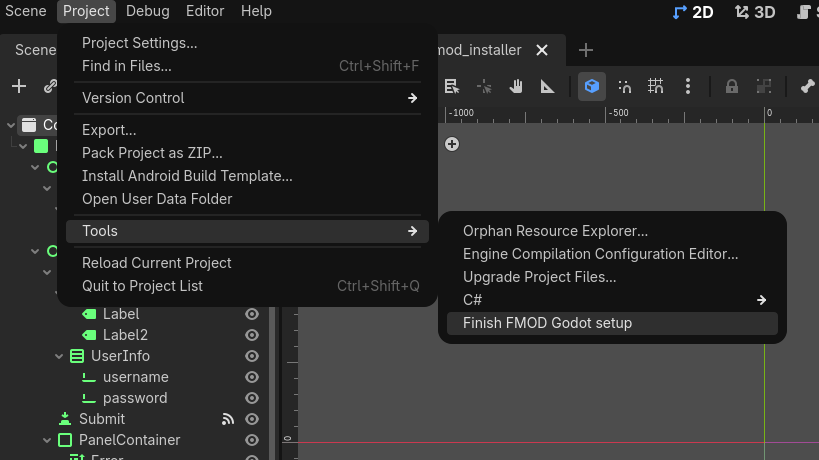
To run the install go to Project > Tools > Finish FMOD Godot setup
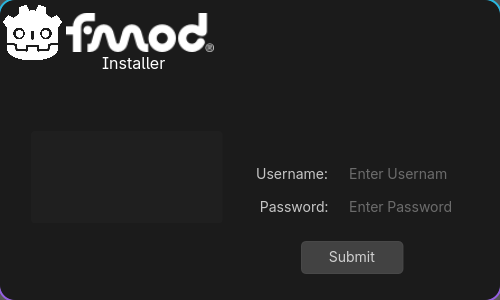
Enter your fmod account info and the installer will close once complete
Manual Install
You must download the FMOD files from FMOD's website and place the *.cs files somewhere in your project directory.
It is necessary to replace FMOD.VERSION.dll and FMOD.Studio.STUDIO_VERSION.dll constants to use the proper fmod library version. Which will be found in fmod.cs and fmod_studio.cs. ".so.14" will change depending on what so file you are using. snippets below
public partial class VERSION
{
    public const int number = 0x00020309;

#if DEBUG || TOOLS
    public const string logging = "L";
#else
    public const string logging = "";
#endif
#if GODOT_LINUXBSD
    public const string dll = $"fmod{logging}.so.14";
#else
    public const string dll = "fmod{logging}";
#endif
}
public partial class STUDIO_VERSION
{
#if DEBUG || TOOLS
    public const string logging = "L";
#else
    public const string logging = "";
#endif
#if GODOT_LINUXBSD
    public const string dll = $"fmodstudio{logging}.so.14";
#else
    public const string dll = $"fmodstudio{logging};
#endif
}
See also
For info on how to compile from source see Compiling from Source.